You can try to look for a product key (serial number) on the various serialz sites out there. I used method several times with much luck when I first got a computer 12 years ago or so. However be warned that:
A: It is very frustrating sometimes finding the key that you need. They don’t always work and I am not sure how MS software keys work. I don’t know if you can use the new ones more than once because of the security features on the new OS. I do remember that I installed XP on several of my home computers using the same serial number with no problems, but I seem to recall that MS now verifies each serial number although that is just a WAG on my part.
B: While some of the warez and serialz sites are pretty good (or used to be, haven’t used them in many many years. I used them when I couldn’t afford software, but saw the error of my ways) they are a breeding ground for maleware, viruses and such. I wouldn’t even attempt to go to one without a good AV installed.
Of course my advice may run afoul of many here. I am only suggesting it as a very last resort. It might keep you from shelling out a few hundred dollars for a new copy of Windows. Hell, I would purchase a new laptop before I would pay that for a copy of Windows.
The other advice I will give is listen to **barbitu8 **, drop the Norton and go with Microsoft Essentials. I always used Norton but finally got tired of it being a resource hog and with the constant pop up messages and went with MS Essentials. I have to give it two thumbs up. It works well, stays in the background unless there is a threat and is free. Good Luck!
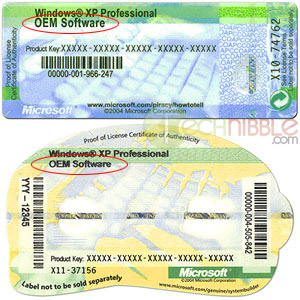
Computer manufacturers are required by their OEM agreement with Microsoft to apply those key stickers to the laptop. It is a big deal if its not there, its one of the things we check whenever someone brings in a machine at our shop to make sure we can legally reload it if need be.
they all look similar to this
Sometimes they will be under the battery but normally they are on the bottom of the laptop itself.
The DVD key was indeed under the battery, so thanks much for that info!
I was able to reformat the C: drive, but when I tried to install, it said that I didn’t have enough disk space. I had 219 GB on C:. I have some unallocated sectors, and I wonder if it’s looking at those and determining if those are too small and failing because of that.
In a desperate attempt to do something – anything – I tried deleting the C: drive. Oops. bad news. It looks like I’m never getting that back.
What I waould love to do is completely nuke the entire drive, removing all NTFS partitions and starting with a clean C: drive. But I can’t find any options to do that. And I’ve tried every option that was given to me.
It showed 4 sections – 2 unallocated, C:, and E:, where another copy of windows is installed. After deleting C:, it now just has the 3 sections. I’m unable to select any of them for install. They’re all invalid for it.
You should only see “unallocated space” E is probably the old restore partition you installed windows to before. It needs to go too at this point to assure we get a clean startup to the proper partition.