Part of me just wants to keep an excel spreadsheet.
I’ve had the same issue with different password managers. When I change a password I get the “update?” Popup and I click yes to update.
But instead of just replacing the entry with the new password, it creates a new entry and keeps the old. So for places you rarely log in to, you don’t know which one to use.
I just attempted to log into my HSA account, which I don’t need to very often, and there were 6 separate entries and no clue which was the most recent. So I ended up getting locked out and having to reset.
Am I doing something wrong or just using crappy password managers? I used LastPass for a long time but have been using Bitwarden the past year or so and it’s the same with both.
I use a database originally designed to help you track the commercial applications and shareware on your computer. Since there was a space to enter installation codes it was an easy jump to also record passwords. And of course the database itself is password-protected and well-disguised as a database of a different purpose,
What device(s) and browser(s) are you using BitWarden on? I’ve never had the problem you describe on my Win11 PC with Edge, nor on my Samsung phone w Android v16 & Chrome. It all just works. Every time.
If you do have multiple login entries for a single website, just click [view] on each one in turn and note the created and edited timestamp at the very bottom. Easy enough to figure which ones are old / obsolete then delete them.
That probably explains what I saw in a bitwarden database I (literally) inherited. Mostly it was fine, but some entries were in there multiple times. Sometimes one of the passwords worked, but often none of them.
I never encounter that problem with my own bitwarden, but perhaps it is because I go the other direction. I don’t change the password on a website and then save it into bitwarden, I generate a new random password in the appropriate bitwarden entry, and then apply it to the website.
The database is on a NAS device, and a copy on my phone which I refresh anytime there’s a change. Perhaps not the most elegant approach, but it works for me. And it keeps my information out of the grubby fingers of Micro$soft/Google/Apple et.al.
Thanks for the explanation. With most any PW manager, the datafile is encrypted with a key that’s only on your machine(s). Yes, e.g. Microsoft is storing your PW database, but they’re just a meaningless jumble of encrypted bits.
Returning to the OP @Quintas and his multiple entries …
I don’t know how techy you are or are not. But I have found that a lot of websites no longer have a single simple login page with a simple url. Sometimes they outsource autheticantion to a third party provider so your login url is like https://MyBank.UniversalAuthenticaorCompany.com. Other times the url has a whole bunch of mumbo jumbo to the right of the ?.
When I first create a login at a new site, I take a critical look at the url that was saved. Then clean it up to the bare minimum that still works. Often that means just cutting it back to https://mybank.com.
I use KeePass, after trying 1Password and a couple others. I put the KeePass archive on DropBox, and then am able to access it anywhere via phone, tablet, etc. Because it isn’t a cloud app, I can also have multiple archive backups stored anywhere, just in case (such as a DropBox connectivity problem which has happened a couple of times), or store a local copy on a temporary travel phone.
Sometimes depending on how the website works, especially if they ask for the user name and password on separate pages, the password manager records the new password with a blank user name, that may be the source of the new entry. Some of them will let you specify the user name before you save (or update) the new info.
It depends on the password manager being able to match domain names to some level of (configurable) precision, and not all websites strictly stay on theirdomain.com. It’s even worse if they have a mobile app that you use too, but the password manager doesn’t know the website and app are connected.
The workflow I found works best for me (I use Bitwarden at work and 1password at home) is to always initiate updates from the password manager itself. If a website asks me to change my password, then I’ll find the entry in the password manager, have it generate a new password there and copy it to the clipboard. Paste it into the website and make sure it worked, then click Save back in my password manager.
It’s a bit of a hassle, but in this way, I’ve gotten my success rate up to like 95% or so — which isn’t perfect, but better than like the 60-70% it used to be back when I first started using password managers.
I’m sure you know this, but for the less techie amongst us …
Bitwarden knows about many common mobile apps and the corresponding website. But not all of them. So maybe the top 25 by user count, but that’s a drop in the bucket of the literally millions of apps that are out there to act as secure conduits to financial outfits, retailers, games, etc.
On the sites+apps Bitwarden knows about, it’ll associate your one login entry with both the website and the app.
You can configure any other app/website combo to use the same login entry if you know how. I just went to Bitwarden’s website to get you all a cite and I’m pissed to discover that they’ve destroyed their documentation by adding an AI search feature that is utterly stupid and can’t find its ass with both electrons.
Suffice it to say there is a way to configure a login entry to work at a website and on an app.
Actually, I had no idea it could do that! That’s cool, and a point in Bitwarden’s favor. Thanks for sharing.
1password, which I use more of, doesn’t seem to — at least not to any appreciable amount that I can see. It does at least surface the app’s internal package name, but the first-time matching is manual and explicit (it gets saved to the entry afterward). On 1password there’s a process for this, though I also can’t remember it off the top of my head… it’s not super hard but not super easy either.
Side tangent / rabbit-hole…
This was interesting (and surprising) enough to me that I asked AI to look into the Bitwarden source code.
GlobalDomains.Add(GlobalEquivalentDomainsType.Google, new List<string> { "youtube.com", "google.com", "gmail.com" });
But apparently it does not also store a mapping of those domains to the app internal IDs/names.
For iOS, apparently Apple just tells the password manager which domain an app or website is for, so it never has to guess. Bitwarden and 1password both use that — automatically, I guess, because they have no choice?
For Android, though, it’s the Wild West. Although there is a similar system for asking the question “Does the facebook.com domain officially associate itself with the package name com.facebook.katana? (example)”, apparently Android does not provide an easy, authoritative way to ask the inverse: “Which domain is the com.facebook.katana app associated with?” for password managers to use.
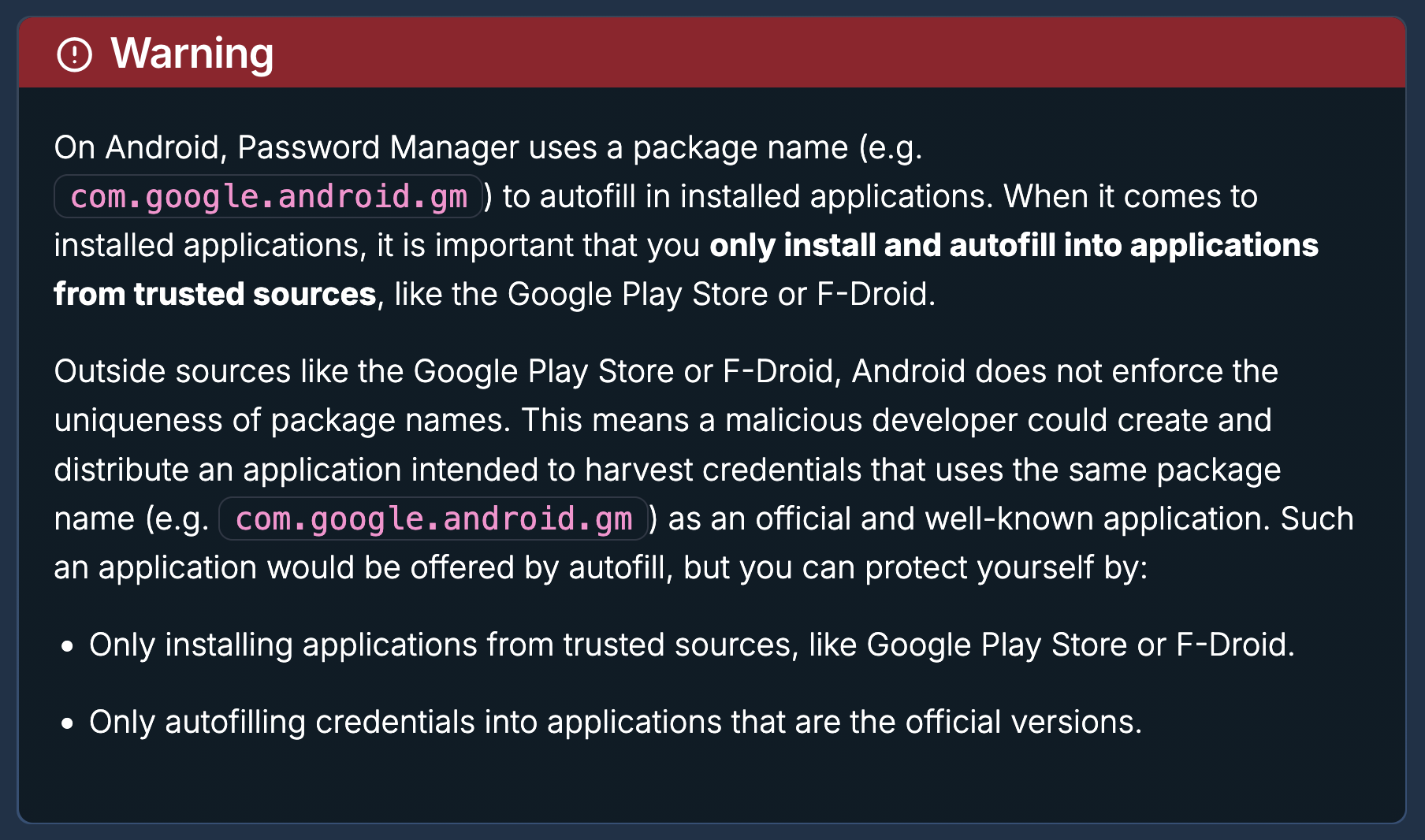
If someone were to register and distribute an app called com.facebook.fake and you installed it, it could theoretically steal your facebook.com password via Bitwarden’s auto-fill. Hmm…
But I don’t think that goes far enough because it relies on Play Store/F-Droid reviewers to catch a malicious package name — and then gets amplified by all the “equivalent domains” from earlier, e.g. Microsoft is considered equivalent to 15 domains, including "bing.com", "hotmail.com", "live.com", "microsoft.com", "msn.com", "passport.net", "windows.com", "microsoftonline.com", and more. If an app manages to sneak through ANY of those domains as its package name, it can steal your Microsoft login. Bitwarden’s list is only updated every few months, and it already contains several dead links (I just checked).
So I guess your security in this case would depend on Play Store reviewers catching inappropriate package names that don’t actually belong to that developer =/ Android isn’t known for having the best malware-catching scheme, although that may get a little better with their upcoming forced and controversial developer verification system that’s rolling out this September. And if you sideload an app, all bets are off — they can have any package name, as long as it’s not already installed on your system.
Anyhow, normally I might say this would warrant at least a low-severity bug report to Bitwarden, but given that they already have that warning there, and that people generally frown upon AI-assisted bug reports these days (too much spam, low signal-to-noise ratio)… they probably already know it and just don’t think it matters enough. It’s not a huge risk, regardless.
1password’s model, in this case, is thus ever so slightly more secure, but a heckuvalot more annoying. Tradeoffs, as always!
Great digging. As always there’s a little scary muck in there along with the good stuff.
The “easy” way to explicitly associate an Android app package with an existing Bitwarden login entry that already has a domain url is to visit the google Play Store via a browser and visit the app details / installation page for that app.
e.g. if you search up the app for Bed Bath and Beyond you’ll find the url of the details / install page is https://play.google.com/store/apps/details?id=com.overstock. Copy the value to the right of “?id=”, in this case “com.overstock”. That’s the package name.
Then in the relevant Bitwarden login entry, add a new url of the format “androidapp://” followed by the package name. in this case that’s androidapp://com.overstock. Then save your changes.
Once your phone syncs that change (you can force a sync under the Bitwarden app hamburger menu), it’ll recognize that app as wanting to use that entry.
Note that all those equivalent domains can be edited by you. So if, e.g., you don’t use but 2 of MSFT’s domains, you can delete all the others as a way to reduce your attack surface.
You do that via their web app under Settings → Domain rules at https://vault.bitwarden.com/#/settings/domain-rules.
The UI for editing or disabling a built-in domain equivalence list (“DEL”) is frankly weird.
To disable a built-in DEL: From the hamburger menu for the DEL in question, click [exclude] to switch it off, then scroll to the bottom and [save]. There’s no indication it “took”, except the entry’s hamburger menu now has an [include] item where [exclude] used to be. Said another way, to know which DELs you’ve switched off, you’d need to examine each DEL’s hamburger menu in turn. Dumb.
To customize a built-in DEL: Choose [Customize] from its hamburger menu. Which adds a new custom DEL entry at the top of the page in the custom DEL section, and containing the same contents. Of course that’s scrolled up off the top of your window, so you don’t see any indication anything happened. Then select [exclude] on the standard DEL entry to disable it, and [save]. Then go up to the custom DEL entry at the top, edit its contents shown in its textbox and [save] that. Now your reduced custom DEL is live, and the factory one is dead.
For my own use, I’ve had to add a few custom equivalence entries where companies I do business with have multiple domains. Sometimes that works better than simply having multiple urls in the login + pasword entry.
I see little point in worrying about shrinking the factory DEL list. Because I don’t use stuff sourced from anywhere but the Google play store. And I pay attention to what I’m downloading. And look at the package ID, and know what I’m looking at.
In fact I’d be suspicious of the Bed, Bath and Beyond example I chose in my previous post due to the package ID being com.overstock. Except that I know the Overstock company bought the husk of BBB out of bankruptcy and adopted their name. So the name mismatch has legit business reasons behind it.