Well, Windows, in its not so infinite wisdom, has removed “wmic” from the command that allows you to get the serial number of your computer in case the label on the back is illegible or completely worn off. I did a quick google search but have had no luck and now have to go to the teacher institute that is starting momentarily.
My official question: After you go to CMD as an administrator, what is the new command line for finding the serial number of your device? “Wmic” is not part of any answer, so that means that “answer” is old and unworkable.
We have a lot of old equipment, and the serial numbers can only be accessed through the CMD, so my inventory functions are in a world of hurt if I can’t get an answer that works.
It should output something like (but hopefully with real serials for you):
There’s not a one-size-fits-all command because there are different Windows versions, different Powershell versions, and different places manufacturers can put serial numbers (or not, in my case).
If the computer is from some major brand (Dell, etc.), their own Windows app (the thing you use to configure the hardware or download firmware updates, etc.) might also show it in the app itself.
The boiled down version in case anyone else might need this info:
In search box type CMD and run it as an administrator.
Key: powershell
Key: Get-CimInstance win32_BIOS
It shows the serial number, the manufacturer, and the name of the computer.
Thank you, thank you, thank you, oh great one!
PS: Sorry, I should have mentioned that this is for Windows 11 computers.
Right you are! Just tested it and it is definitely there.
Gee, why would I think of checking the BIOS for something that had BIOS in its command line?! Hmm … LOL
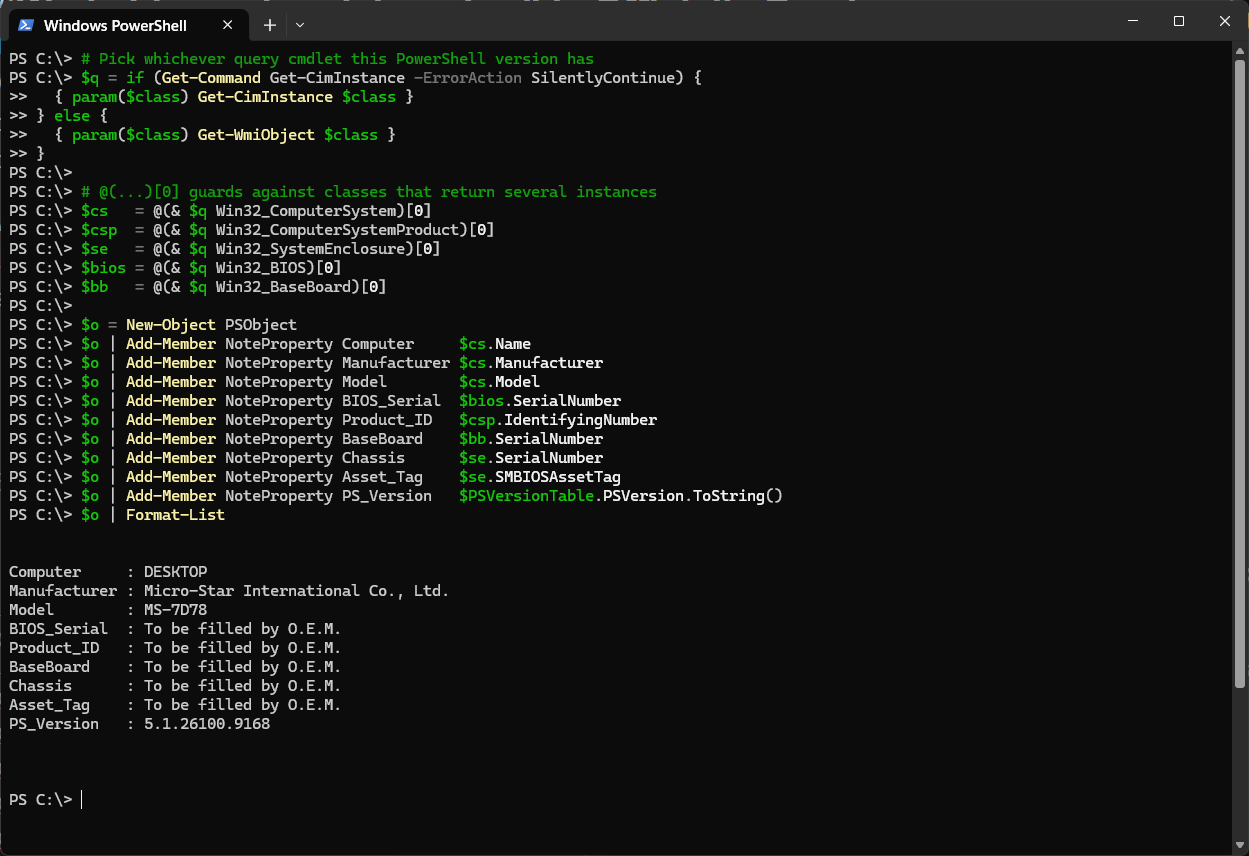


 .
.