Managing email across multiple devices

Long story short: The ISP (an evil cable company) that provides my main email account has merged a bunch of legacy email domains into one place (the old domain’s, e.g. something like pituitary.com, are now part of the bigevil.com email server but the emails sent to/from the original pituitary.com will still go in and out normally using the legacy address). I have to change all my email client accounts/settings.

In order to continue receiving and sending email on my devices, I have to move from my current POP3 device accounts to IMAP and change my current email password to the password I use to access my overall bigevil.com website. I have three devices I get email on:

Windows 10 PC, ThunderBird client
Samsung G25 (Android), Samsung mail client
Windows 8.1( :astonished_face:) Surface Pro (Don’t worry, I’m migrating it to a new Windows 11 Surface Pro this week!), ThunderBird client

All my clients are up to date for the OS they are on.

I pretty much figured out how to set up the new IMAP accounts (can’t just change a POP3 client account to IMAP), but I’m worried about how the switch will affect retention and storage of my email.

I keep my “permanent” email on my Windows 10 PC (let’s just call it the Main Acct). I have emails in archive folders going back more than 10 years and my Inbox has thousands of emails going back at least 10 years. I generally don’t care what happens long term on my other two devices, I don’t bother archiving mails on either and just use them to work with immediate emails.

Before I make the switch, I’d like to understand how I can:

  1. Migrate the POP3 Inbox on my Main Acct to the new IMAP account without uploading thousands of emails going back years into my webmail (which only contains current emails I haven’t deleted from my Main Acct Inbox going back a couple of weeks, less than 300).

  2. Once set up, keep any deletion (accidental or otherwise) I do on my Surface Pro or Samsung from deleting emails on the web server (in case my Main Acct, where I want my ASOT* emails to reside, hasn’t downloaded them yet)

  3. Maybe (if it is possible) create a situation I had years ago on my Work devices: If I deleted emails on my Main office PC (Outlook) it automatically deleted the email on my Work phone (Outlook) but if I deleted an email on my Work phone, it didn’t delete the email on my Work computer. I’m pretty sure it’s not possible now with what I’m migrating too, but I thought I’d ask.

I’ve found instructions (mostly from Mozilla) on backing up my Thunderbird profile/email in the current account and I basically don’t care a lot about backing up the Samsung client (Verizon has conveniently hidden the Samsung Cloud from me, so it’s going to be a project backing those emails up). I’ve gotten the instructions on what settings I need for the IMAP client accounts, plus stern instructions to change my password on my ISP account (which will erase all trace of my current email account password) before setting the IMAP accounts up.

Any (factual) advice (that isn’t get IOS or Linux) is welcome because, frankly, I’m confused as to what the email retention deletion rules are in IMAP and what leeway I have in settings to manage retention/deletion.

*ASOT: Authoritative Source Of Truth (it’s a digital transformation thing)
Looks good, but you left off step 4:

  1. Stop using email from your ISP!

Being stuck with a crappy ISP when they keep jacking your rates because you can’t/won’t change your email address is a losing proposition.

IMAP should leave everything on the server up to your mailbox limit until you delete it.

So I think the main thing to keep in mind here is that IMAP is fundamentally different from POP3. With IMAP, the server is authoritative and whenever a client (any of your devices) does anything with a message, whether that’s replying to it, archiving it, or deleting it, it tells the server to do that and that action then gets synced across ALL your clients.

It’s kinda like accessing www.gmail.com from different devices… anything you do on one device happens on ALL devices, automatically, unavoidably (because it’s actually happening on the server, and your clients are just a reflection of the server).

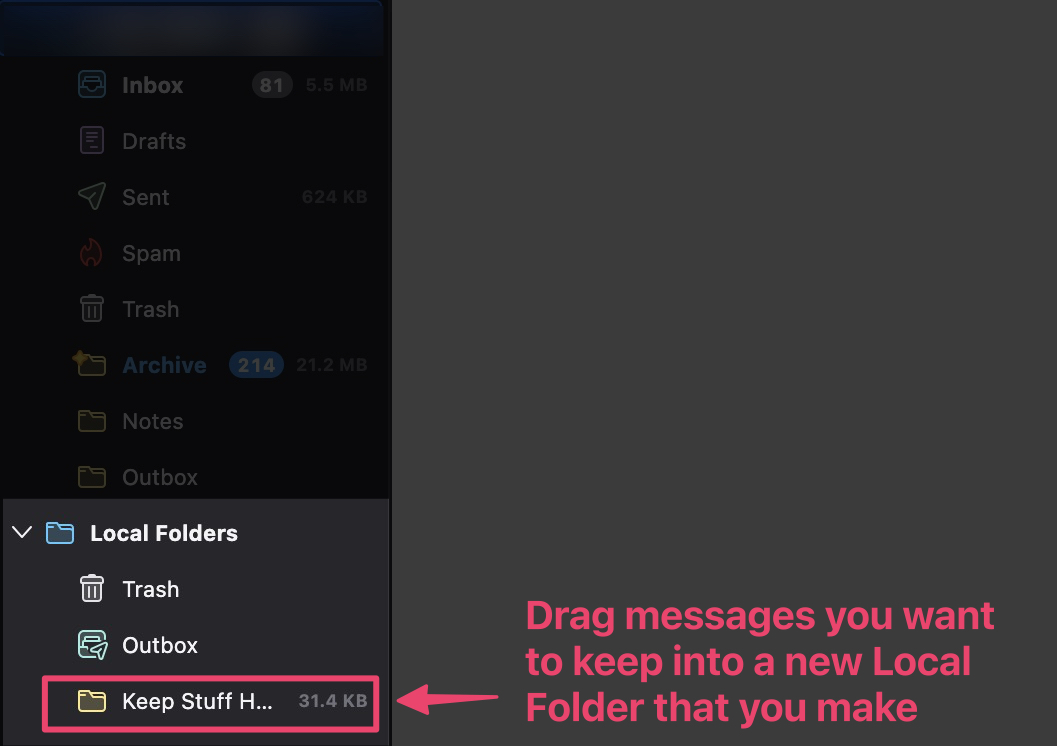
So to get around that, you have to use a workaround: Thunderbird Local Folders:

The regular IMAP account folders are on the server. If you want to keep a message on a particular computer, you have to first move or copy it into a Local Folder. If you copy it there, it will be a local file on your computer and the IMAP server copy will be unaffected (meaning you can create Local Folders and local copies on more than one device). But if you move it there, you’ll have a local copy, but it will also be deleted from the IMAP server (and thus all your other clients).

As for your old POP3 mail, same thing… move/copy them all to a Local Folder. Don’t upload them to the IMAP server.

Make sure to back up your Local Folders, because those messages are only on that one device. If its drive dies, the messages are gone. It’s a lot safer to keep them on IMAP servers, generally speaking, and just put them into an “Archived” folder. Most email providers have much much better security and backup systems than your home computer.

Well… IMHO only, and probably not what you want to hear… but… tis simpler to just use a cloud-native email like Gmail or ProtonMail or Hotmail (or whatever it’s called these days, Outlook? Live? I forget) or Yahoo Mail or whatever and never have to think about Thunderbird or email protocols again. The cloud emails are super simple and don’t lose your emails (they encourage you to just archive everything forever).

If you insist on keeping your ISP email and having local copies on your devices, then you have to jump through hoops like the above. There’s a reason most of the world has moved to gmail.com and similar; there’s zero setup and zero hassle and zero config. IMAP, Thunderbird, etc., are artifacts from a previous era. Nothing wrong with them per se; you just have to be willing to do more work to keep using those technologies.

I manage my email pretty much exactly as described in the OP. I store all emails locally on my PC using Thunderbird, which accesses the server via IMAP. I also access the server from my phone via IMAP, currently also using Thunderbird although in the past I’ve used other mobile clients. On the PC, when I read and deal with an email in the inbox, I either delete it (if it’s spam or something else I don’t want to keep), or drag it to an appropriate local folder for permanent storage, which removes it from the server and stores it on the PC. Unless there’s a reason you’re wedded to the Samsung client, you may want to consider using Thunderbird on your phone. It’s very easy to set up Thunderbird on the phone if you already have it set up on your PC. But any email client on your phone should work ok.

The main difference from what you describe is I almost never delete emails via the phone. There’s no real reason to; when I delete or move the email from the inbox on the PC, it’s removed from the server so it no longer shows up on the phone. If you do delete an email on the phone, it will be deleted from the PC as well. The solution is just don’t do that.

I don’t think you need to do anything with your stored local mail when you switch from POP3 to IMAP. Once it’s stored on your PC in a Thunderbird folder, it doesn’t matter whether it was downloaded via POP3 or IMAP. It’s been decades since I switched from POP3 to IMAP so perhaps I’m not remembering something, but I’m pretty sure that when you switch to IMAP, all your local folders will remain untouched.

This is the same setup I’ve used for at least 30 years. In the past I’ve lost email due to server issues. I know that in the modern era I’m more likely to lose files stored on my PC than files stored on a well-maintained server, but I’m reluctant to change a system that has worked well for me for much of my life and continues to do so.

I think it’s all been good advice so far.

One very reasonable thing you can do in Thunderbird is set one of your devices (probably the PC) to download all messages. This will give you a local copy of all of your email, in the event you lose access to your ISP’s version.

The advantage of doing it like this, instead of copying all of the messages to your local account, is that Thunderbrid does it in the background, so you don’t need to worry about it. It will also sync changes you make on other devices.

The easiest thing to do with your old POP3 mail is to archive it on your PC. It’s there if you need it, but otherwise is not in your main account.

If you do not have a reliable backup plan for your PC, then I recommend that you do upload all of your old POP3 email to your ISP, space permitting. This has the advantage of giving you two copies, the one on the ISP’s server, and your local copy, and you will also be able to access all of your old email from your other devices.

This talk of ISP email is the first time it occurred to me, my new ISP did not offer me an email account. I just switched from Comcast to T-Mobile/Intrepid. I had a never used @comcast.net address, but I don’t have a new @t-mobile.com address.

If by “local folders” you mean custom folders that you’ve created and into which you move your emails, yes, that’s true, they won’t be affected. But switching from POP3 to IMAP or vice-versa will create a whole new account (in MS Office Outlook, and I’m pretty sure in any email client) with its own set of default folders (Inbox, Sent Items, etc).

Question for the crowd. Is it generally acknowledged that IMAP is the more modern, superior protocol compared to POP3? Microsoft apparently thought so when they released MS Office 2021, whose version of Outlook supports Oauth 2.0 only with IMAP and not POP3. FWIW, Thunderbird supports Oauth 2.0 with either one.

Absolutely. POP3 is a terrible, inflexible protocol that’s been basically obsolete for 20 years or more. There’s no reason anyone should be using POP3 if IMAP is available.

Thanks. When I was recently helping a friend set up a new business computer for their home office, the choice was to set up Outlook with IMAP and Oauth 2.0, or set it up as in Ye Olde Tymes with POP3 and lowered security in Gmail so that an app-specific password could be used in place of Oauth. I guess we made the right choice!