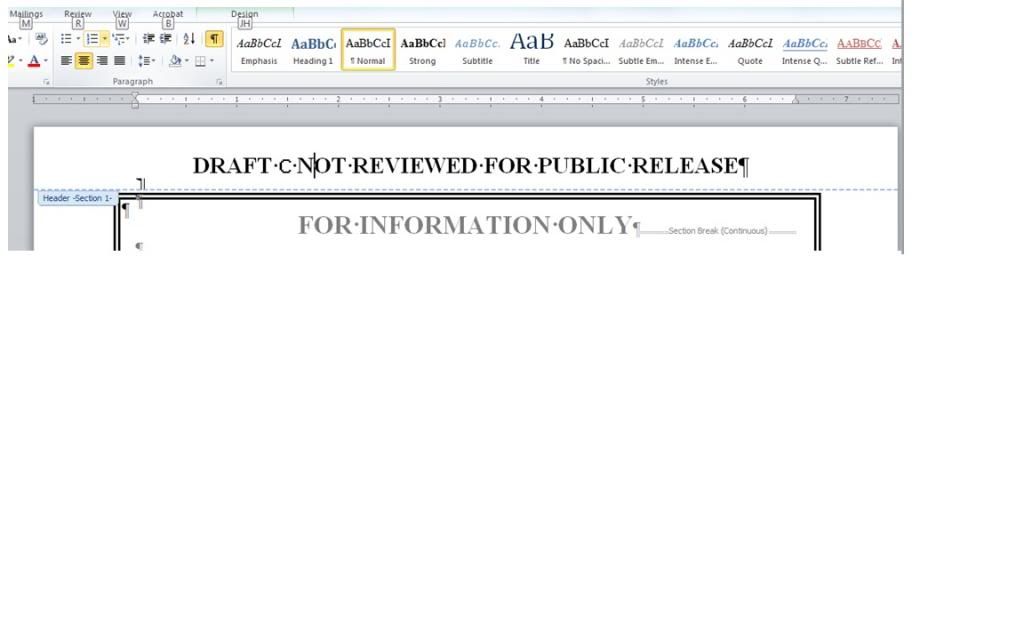
Long story short, been using Word 2010 for some time now, but just got “upgraded” to Windows 7 OS and now the hyphen (or possibly the en-dash) character in ALL previously-created document HEADERS displays as a character looking like a “c.” Not sure if it’s happening anywhere other than the headers.
It also prints as a “c” and appears in newly-created .pdfs as a “c.”
If we replace it with a freshly-typed dash, it appears correctly. But we have hundreds of older documents to go through if we’re just going to manually replace it, and of course there might be other characters displaying incorrectly that we have not yet discovered.
The printers did not change and no fonts were installed to my knowledge; all that happened was we got new machines with Windows 7. We are using the same MS Word as before.
Are the affected files all originating from the same source? (Such as your previous computer?) Maybe the mis-configuration was on the LAST computer that touched them.
No, they are archived after having been generated by multiple machines over the course of years. Apparently all the new Windows 7 machines see this display error.
Sounds like your old system had a font where the c looked like a type of dash.
I’m guessing your new system doesn’t have that font, so Word picks some other font to display that text. Its version of “c” looks like “c”, not a dash, but Word doesn’t know that.
Open up the file in Word and check out the name of the font. Ideally, do this on the old system where the file displays as desired (if you still have any unupgraded computers around).
If this is the issue, here are two possible solutions:
Copy the font from the old system to the new system.
Modify all the documents to use a different character and font. You can have Word search and replace all uses of “c” in a certain font with a dash in a different font. It looks like you could use VBA scripting to have it automatically do this in every file in a set of directories. (Or perhaps someone has written a Word add-on that can do this more easily.)
Option 1 assumes the font isn’t already installed on the new system. If it is installed, but it’s different, replacing it with the older version might be an option (but it might mess up other stuff). First thing, though, is determining which font it is.
In addition to telling us the name of the font, it would be helpful if you could tell us your prior Windows version (asking IT if needed). Did you get new computers, or did they update the old ones?
In both “old and new versions”? By the former, do you mean you checked it on one of the old computers, where the character displays correctly?
If in fact you still have one of the old computers, please check which Windows version it’s running. The System control panel should say.
Just to be clear: You tried going to the old computer and selecting just the single character in question, no others, and Word shows it as Times New Roman. Right? If you select Times New Roman from the list of fonts, while that single character is selected, does it change? (If it does, use undo to revert that change.)
If you copy just that correctly-displaying character to Wordpad on that old computer, does it still look the same? Does Wordpad also say it’s Times New Roman?
No, I do not have access to the old computer any more. I would have to annoy IT to ask what previous version of Windows it had.
However, all the documents in question are on a shared drive on our network. They all looked fine on the old computer, and were supposed to be in Times New Roman, although obviously I did not check that specific character until the problem occurred (at which point I no longer had access to the old computer).
However, opening the documents with the new computer shows the error, and that character is Times New Roman when highlighted by itself in MS Word.
However, pasted into Wordpad, the font window describes it as WP TypographicSymbols. If I change that to Times New Roman, the character now looks like a normal capital C in Times New Roman.
Thanks, everybody, for helping with this stubborn problem.
Interesting. Have you tried setting the font for that character to WP TypographicSymbols in Word (if it’ll let you)?
Maybe you could use directions like these to find all instances of the bad character in the odd font? If that works on one document, you could automate it with VBA scripting, as I mentioned.