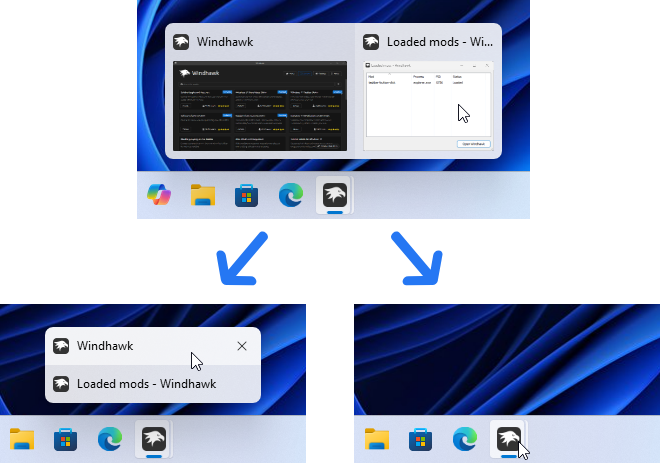
The taskbar at the bottom of the screen has the icons for your pinned programs. When you hover the mouse over them, there are popups that expand the icon.
I find that if I’m working on a Word document and get to the bottom of a document, the popups come up when I’m mousing and cover the text on my doc. They’re extremely irritating.
What version of Windows are you using and how willing are you to get your hands dirty addressing this? I think this is one of those things, at least on Win11 that (and possibly depending on which update you last installed) may require you to edit the registry and even then it may not work.
ETA, while I don’t use things like PowerToys for much, if it can do this, it might be easier.
Right click the taskbar and choose, “Taskbar Settings”. VIrtually all taskbar functions and notifications can be turned on and off there. At the bottom of mine is a category called, “News and Interests”. Turn off, “Show news and interests on the taskbar.”
Also, you can go to “Notifications & Actions” and turn off notifications there.
But try to find the setting that does what the OP is looking for. I don’t think it’s there and/or doesn’t work anymore. The OP’s complaint is very, very common and I’ve yet to see an easy fix for it. At best are workarounds that seem to work on some systems but not others, often just depending on the latest update.
For example, one fix was to go into the registry and change how long the mouse has to hover before the pop up, pops up. People would change it to, say, 10 seconds, so it wasn’t an issue, but update 24H2 broke that.
OP, if you google [Win11 taskbar preview disable] you’ll find enough discussions about this that you may well decide it’s easier to live with than to try these random fixes and hope you don’t cause other issues in the mean time.
25H2 has been available for some time. He needs to key in “Check for Updates” in his search box, and the Windows update screen will pop up and start an automatic search for updates.
The specific thing the OP is complaining about are not notifications. And there’s not a way to switch that feature off, at least not through the normal UI.
Couple thoughts:
They’ll only pop up if you sloppily drive your mouse out the bottom of Word’s window and into the taskbar. Easy to do, perhaps hard to learn to not do, or at least do less often.
Assuming WIn11, although 10 is similar…
If you right-click the taskbar a popup appears and one choice is [Taskbar settings]. Click that.
In the section labeled “Taskbar behaviors”, one of the choices is taskbar alignment which can be set to “left” or “center”. Changing that may move the taskbar icons to a place where you’re less likely to mouse into them. The fewer icons you have, the better that will work.
As an aside to that, I try to have very few icons pinned, so only the apps I’m using right now are on that list. Which for me is pretty much just Outlook, OneNote, and my browser. Fewer icons = smaller target to inadvertently mouse over.
Also on that same “Taskbar behaviors” area is an option to “Automatically hide the taskbar.” That makes it slide down out of sight when not being used. And you summon it by dragging the mouse all the way the very bottom and pausing there. A side advantage of this is now your screen is incrementally taller. It’s a bit annoying to get used to, but that may reduce your annoyance.
This is what I do, my problem is that sometimes the taskbar STAYS hidden when I try and bring it up. I either have to minimize everything or close them to get it to pop back up. At that point I also have to go back to unhide the taskbar and then rehide it. It’s been happening a lot more the last couple of months now. But hiding will keep anything on the taskbar from covering the bottom of the screen.
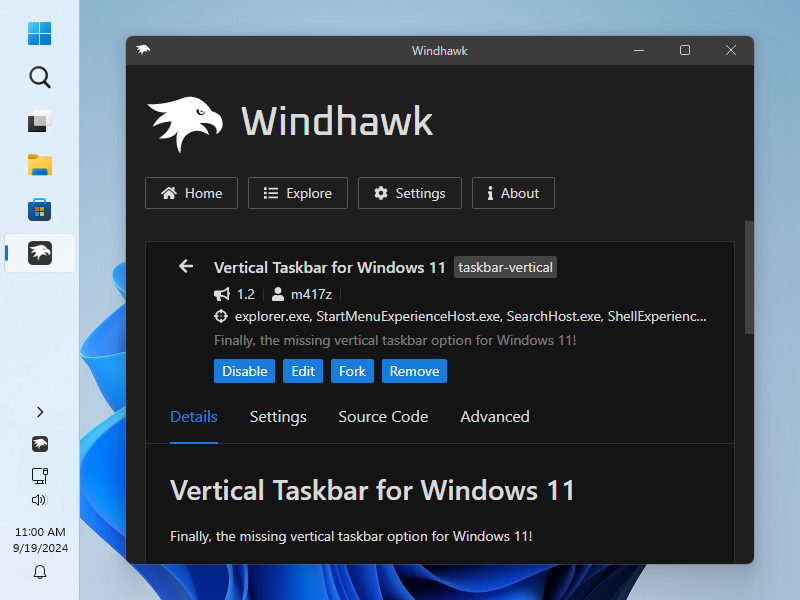
Sadly, that feature was removed in Windows 11. I used to keep the taskbar on the right side of the screen, which was much better for me because it could hold many more icons when in that vertical orientation. But when I upgraded to W11 I had to get used to having it at the bottom.
Since about XP I have had my taskbar down the left side. IMO the left side is better than the right because that meant I didn’t run into it with the mouse while using the scroll bars that are at the right edge of maximized (or right-docked) windows.
And for most text purposes, our screens are too wide and too short; the aspect ratio is optimized for watching movies, not doing work. By moving the scroll bar from top or bottom to either side, the remaining screen area is a little taller and narrower. So fits text work better.
Knowing a bit about how Microsoft evaluates changes, I’m surprised they expended effort to remove the dock-taskbar-on-any-edge feature.
sigh. I was afraid that was the case, from poking around and trying different buttons in Settings, with no success.
I had discovered that and moved it to the left. I’ve never liked the centre alignment, but didn’t realise I could change it. Will see if that makes a difference.
I try to have as few icons on the Taskbar as possible. Don’t like clutter.
Our IT department doesn’t want us to get our hands dirty or edit the registry (which I don’t know how to do, in any event), so I’m afraid that’s not an option.
See above re IT restrictions.
Thanks for all the comments, everyone. This may be one of those “grit teeth and swear at Bill Gates” things.
(Yes, I know he’s pretty much gone from MS, but his spirit lives on.)